Events
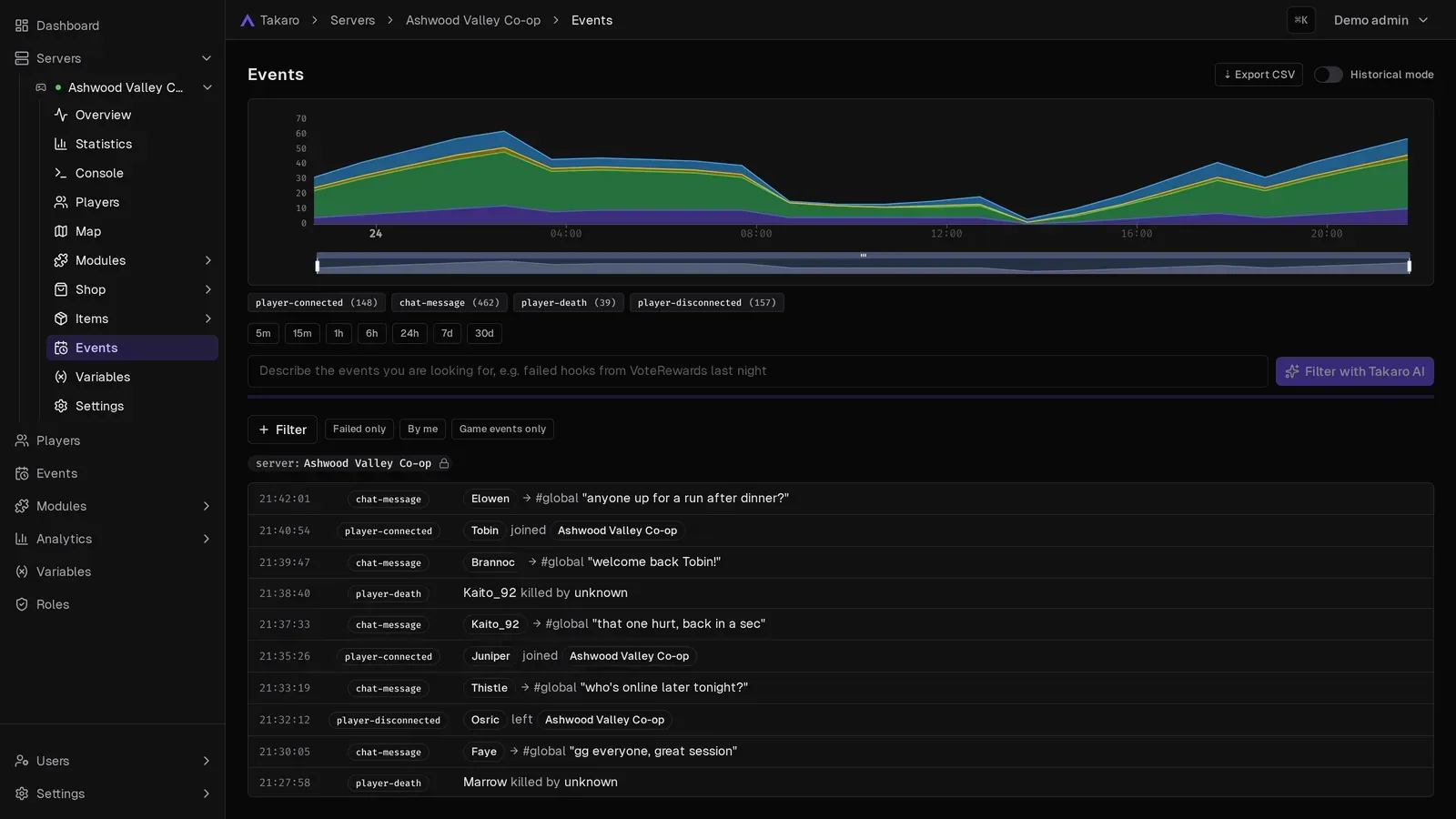
An event is a record of something that happened. A player joined, someone typed in chat, a module command ran, an admin banned a player. Takaro keeps them all in one feed you can filter.
You need the Read Events permission.
Where to find events
Section titled “Where to find events”| Page | Shows |
|---|---|
| Events in the sidebar | Events from every server |
| Servers → your server → Events | Events from that server only |
| A player’s profile → Events tab | Events of that player. See Players |
The server page and the global page work the same way. On a server page, the server filter is fixed.
Event types
Section titled “Event types”There are three groups.
Game events come from your game server:
| Event | When |
|---|---|
player-connected |
A player joins |
player-disconnected |
A player leaves |
chat-message |
Someone writes in chat |
player-death |
A player dies |
entity-killed |
A player kills a creature or another entity |
log |
A log line from the server |
Discord events: discord-message, a message in a connected Discord channel.
Takaro events come from Takaro itself. A few common ones:
| Event | When |
|---|---|
command-executed |
A module command ran |
command-execution-denied |
A player tried a command without the permission |
hook-executed, cronjob-executed |
A module hook or scheduled job ran |
player-banned, player-unbanned |
A ban was added or lifted |
role-assigned, role-removed |
A role was given or taken away |
currency-added, currency-deducted |
A player’s balance changed |
shop-order-created |
Someone bought something in the shop |
player-new-ip-detected, player-new-name-detected |
A player showed up with a new IP or name |
player-linked, player-unlinked |
A player was linked to or unlinked from a user |
server-status-changed |
A server went online or offline |
module-installed, module-uninstalled |
A module was installed or removed |
The Event type filter lists every type.
Live and history
Section titled “Live and history”At the top right there is a switch:
- Live · 15m (the default): new events stream in as they happen. The page opens on the last 15 minutes. A counter shows how many new events arrived.
- Historical mode: a fixed time window. Pick a preset: 5m, 15m, 1h, 6h, 24h, 7d or 30d.
The chart above the list shows how many events happened over time, split by event type. Click a series in the legend to filter to it.
Filter events
Section titled “Filter events”You can combine filters. Active filters show as chips under the controls. Remove one chip, or clear them all.
Filter menu
Section titled “Filter menu”Choose Filter, then Add filter, and pick one of:
- Player
- Game server
- Module
- Event type
- By user: events caused by a team member
- By module: events caused by a module
You can also add a filter from an event in the list.
Quick chips
Section titled “Quick chips”- Failed only: only commands, hooks and jobs that failed.
- By me: only events you caused.
- Game events only: hides changes Takaro made itself.
Filter with Takaro AI
Section titled “Filter with Takaro AI”Type what you are looking for in plain words in the Takaro AI box. For example:
- “failed hooks from VoteRewards last night”
- “deaths of Robin this week”
- “chat on the PvP server yesterday”
Choose Filter with Takaro AI. Takaro AI turns your sentence into filters and a time range. Check the chips it set and change them if needed. If a name matches more than one player, server or module, it asks you to pick one with the Filter menu. See Takaro AI.
Event details
Section titled “Event details”Click an event to open its details:
- Related: links to the player, server and module, and the user who caused it.
- Code: for module events, a link to the code that ran.
- Raw JSON: the full event data.
- copy permalink: a link straight to this event.
Find out why something failed
Section titled “Find out why something failed”When a command, hook or scheduled job failed, the details show a Takaro AI section:
- Why did this fail? explains the error.
- Fix it with Takaro AI fixes your own module. For a module you didn’t write, the button is Copy and fix it with Takaro AI.
Takaro AI asks for your approval before it changes the module. For more on debugging, see Debugging modules.
Export to CSV
Section titled “Export to CSV”Choose Export CSV at the top right. You get the events that match your current filters, for up to 90 days.
How long events are kept
Section titled “How long events are kept”Your plan decides how far back event history goes. Older events are deleted.
| Plan | Event history |
|---|---|
| Free | 3 days |
| Hobby | 14 days |
| Community | 30 days |
| Pro | 90 days |
See pricing for current plans.