Takaro AI
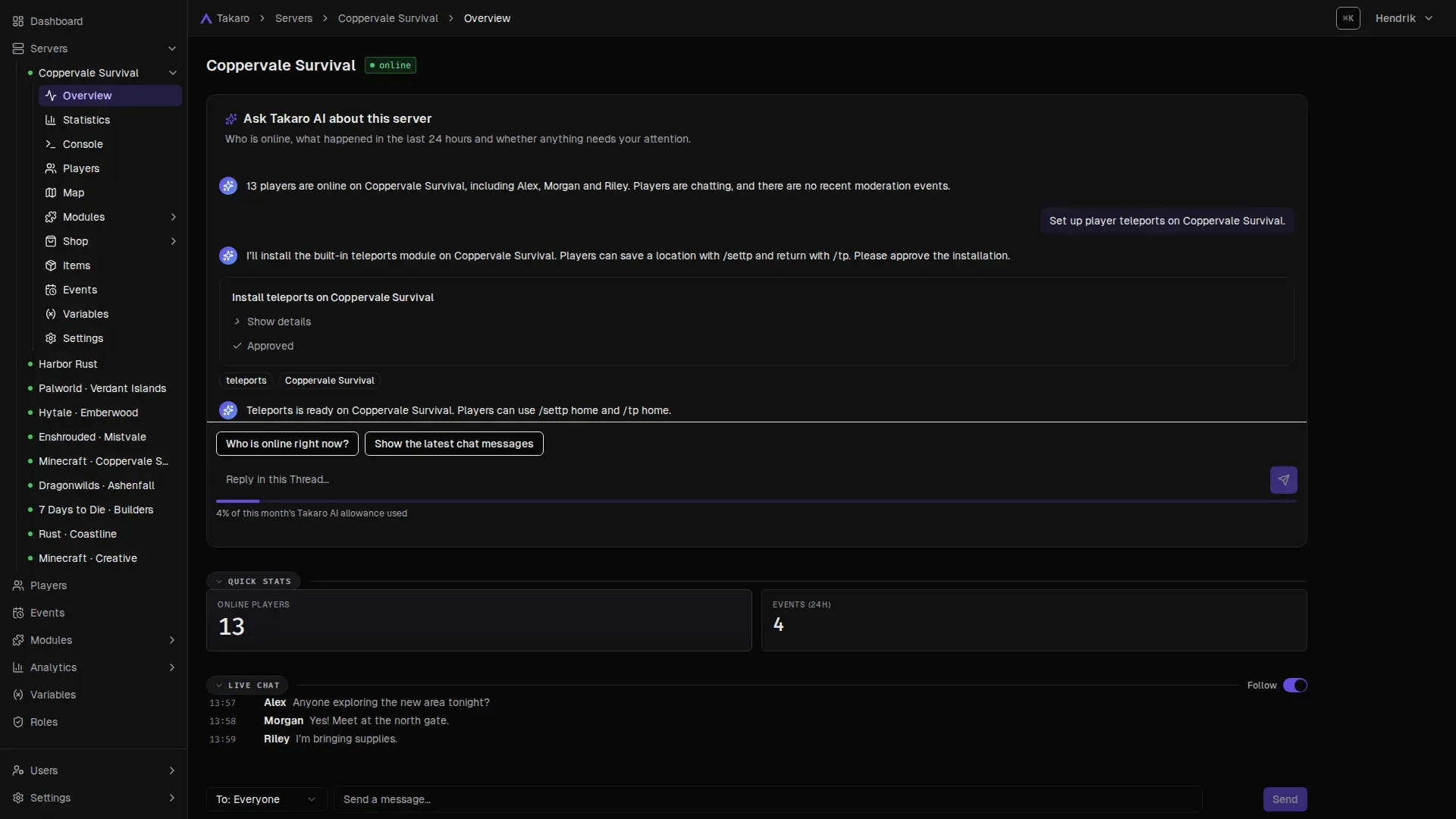
Takaro AI is built into the dashboard. You describe what you want in plain words, and it does the work or gives you the answer. It acts with your permissions, and it asks for your approval before it changes anything.
What it can do
Section titled “What it can do”- Write and edit modules from a description. Modules are add-ons that add commands and features to your server.
- Explain failed commands and hooks, and offer a fix.
- Summarize a player: what they did in the last 7 days.
- Suggest role permissions from a description of the role.
- Explain module settings and suggest values.
- Help you migrate from CSMM, the older 7 Days to Die server manager.
- Answer questions about your community, like who is online or who was banned.
Where to find it
Section titled “Where to find it”You don’t need to open a separate tool. Takaro AI shows up where you need it.
| Where | What you see | What it does |
|---|---|---|
| Anywhere, Ctrl+K (⌘K on Mac) | Type a question, then pick Ask Takaro AI: … | Answers questions about your community. Earlier conversations are under Recent Threads. |
| Dashboard | Daily briefing | What changed since you last looked. |
| Server Overview | Ask Takaro AI about this server | Who is online, what happened in the last 24 hours, and whether anything needs your attention. |
| Server Console | Ask Takaro AI for a command | Describe what you want to do. Takaro AI proposes the console command. |
| Modules → Registry | Describe a module and Takaro AI builds it | Builds a new module from your description. |
| A module’s page | Edit with Takaro AI | Changes the module. For a built-in module it’s Copy and edit with Takaro AI: it changes a copy, never the original. |
| Installing a module | Explain these settings | Explains each setting in plain language and suggests values for the form. |
| Events | Filter with Takaro AI | Describe the events you want, for example “failed hooks from VoteRewards last night”. |
| A failed event | Why did this fail? | Explains the failure. Fix it with Takaro AI then fixes the module. |
| A player’s profile | Summarize with Takaro AI | Playtime, servers, notable events and anything suspicious from the last 7 days. |
| Roles, creating a role | Suggest permissions | Describe the role, for example “can kick players but not ban them”. The proposed permissions go into the form. |
| Shop Storefront | Set up the shop with Takaro AI | Helps you set up your shop. |
| Import from CSMM | Migrate the rest with Takaro AI | Helps with the parts of your CSMM setup the import doesn’t copy. |
A conversation with Takaro AI is called a Thread. You can reply in a Thread to ask follow-up questions or steer it.
Build a module from a description
Section titled “Build a module from a description”- Open Modules → Registry, for one server or for your whole domain.
- In the Takaro AI banner, describe what your module should do. For example: “give players a reward when they log in each day”.
- Select Build it.
- Takaro AI shows what it will build. Approve it, or reply to change the plan.
- When it’s done, select Open module to see it, or install it on a server.
To fix a module that keeps failing, open the failed event under Events and select Why did this fail?. See Modules.
You stay in control
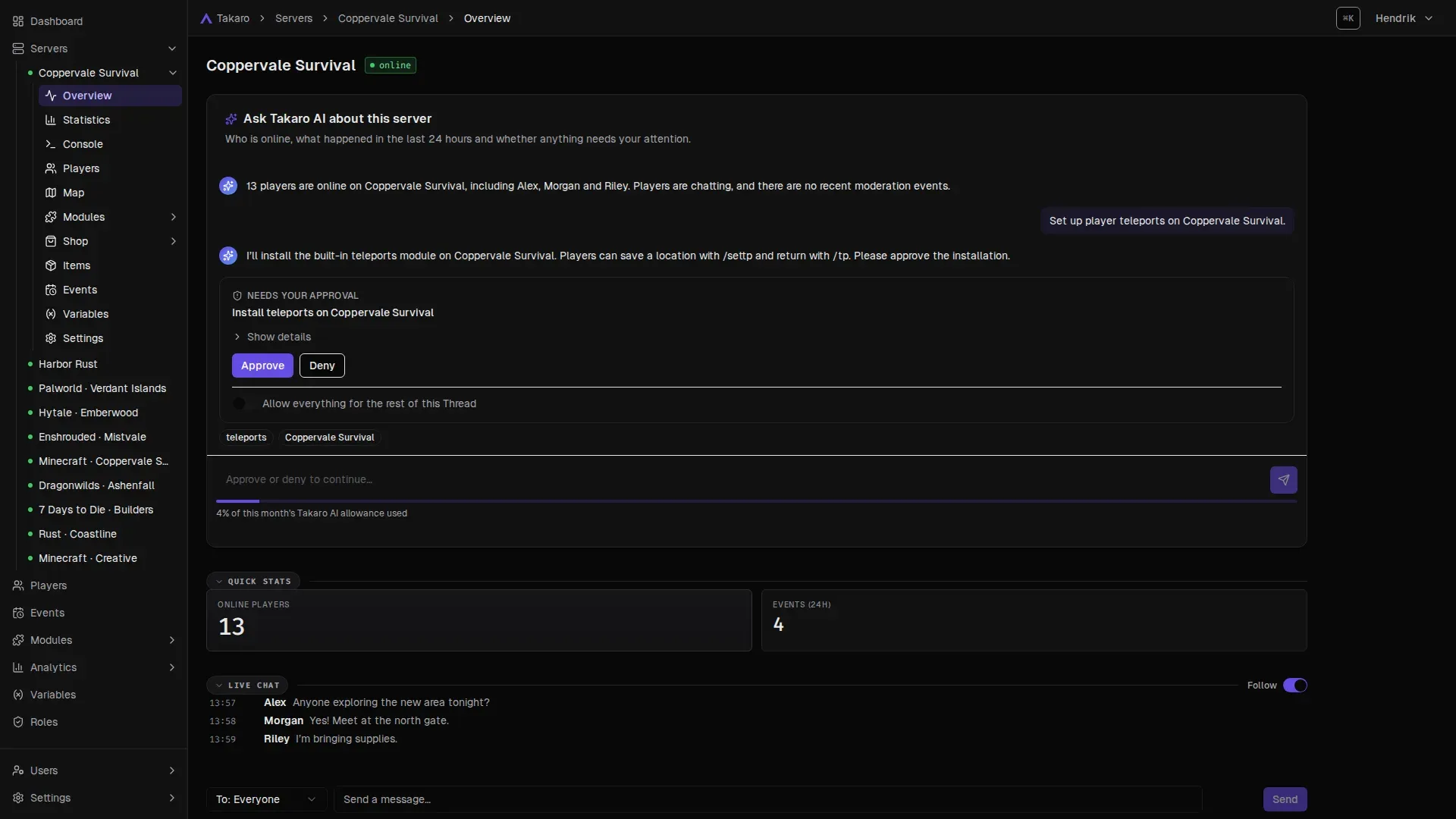
Section titled “You stay in control”- It asks before it changes anything. Takaro AI shows what it wants to do. Select Approve to go ahead, or Deny to stop it.
- “Allow everything” is your choice. On an approval card you can pick Allow everything for the rest of this Thread. Takaro AI then makes changes in that Thread, including installing modules, without asking.
- Console commands always ask first. Anything that runs on your game server’s console needs your approval, every time, even with “Allow everything” on.
- It acts with your permissions. Takaro AI can’t do anything you aren’t allowed to do yourself.
- Forms stay yours. When it suggests role permissions or module settings, it fills the form. Nothing is saved until you press Create Role or Install yourself.
- It never proposes full access. When suggesting role permissions, it never gives the Root permission. Switch that on yourself if you really want it.
Actions that need approval include running a console command, kicking or banning a player, lifting a ban and sending a message in game.
Plans and usage
Section titled “Plans and usage”- On the free plan, connect a game server first. Takaro AI starts working once you have one.
- Your Takaro AI usage shows as a percentage under Settings → Billing. See Settings and account.
- The CSMM migration Thread doesn’t count against your usage.
- If your plan doesn’t include Takaro AI, you see Takaro AI is not included in your plan. To change your plan, use Manage plan under Settings → Billing.
Turn it off
Section titled “Turn it off”To switch Takaro AI off for everyone in your domain, go to Settings → General → Takaro AI and turn off Takaro AI Enabled. People then see Takaro AI is switched off for this community.
Use your own AI assistant
Section titled “Use your own AI assistant”Prefer Claude Code, Codex or another assistant you already use? You can connect it to Takaro over MCP (a standard way for AI tools to talk to apps). It then works with your servers, players, modules and roles, with your permissions. See Connect your AI assistant.