Users and invites
A user is a Takaro login. A player is someone in game. This page is about users: who can sign in, how you invite your team, and what they may do.
Users vs players
Section titled “Users vs players”| Users | Players | |
|---|---|---|
| What | A login for Takaro | A person on your game servers |
| Comes from | Invite links, or players signing in to your Player Portal | Takaro sees them join a server |
| Roles control | What they can do in the dashboard and API | What they can do in game |
| Where to find | Users → All users | Players |
A user and a player can be linked. Then Takaro knows that login belongs to that player. See Link a player to a user.
Two kinds of user
Section titled “Two kinds of user”The Type column on All users shows which kind each user is.
- Admin: a team member who uses the dashboard, like you or someone who joined through an invite link. Admins count toward your plan’s team member limit.
- Player: someone who signed in to your Player Portal to link their player and use the shop. Player logins don’t count toward the team member limit.
How many team members you can have depends on your plan. See pricing.
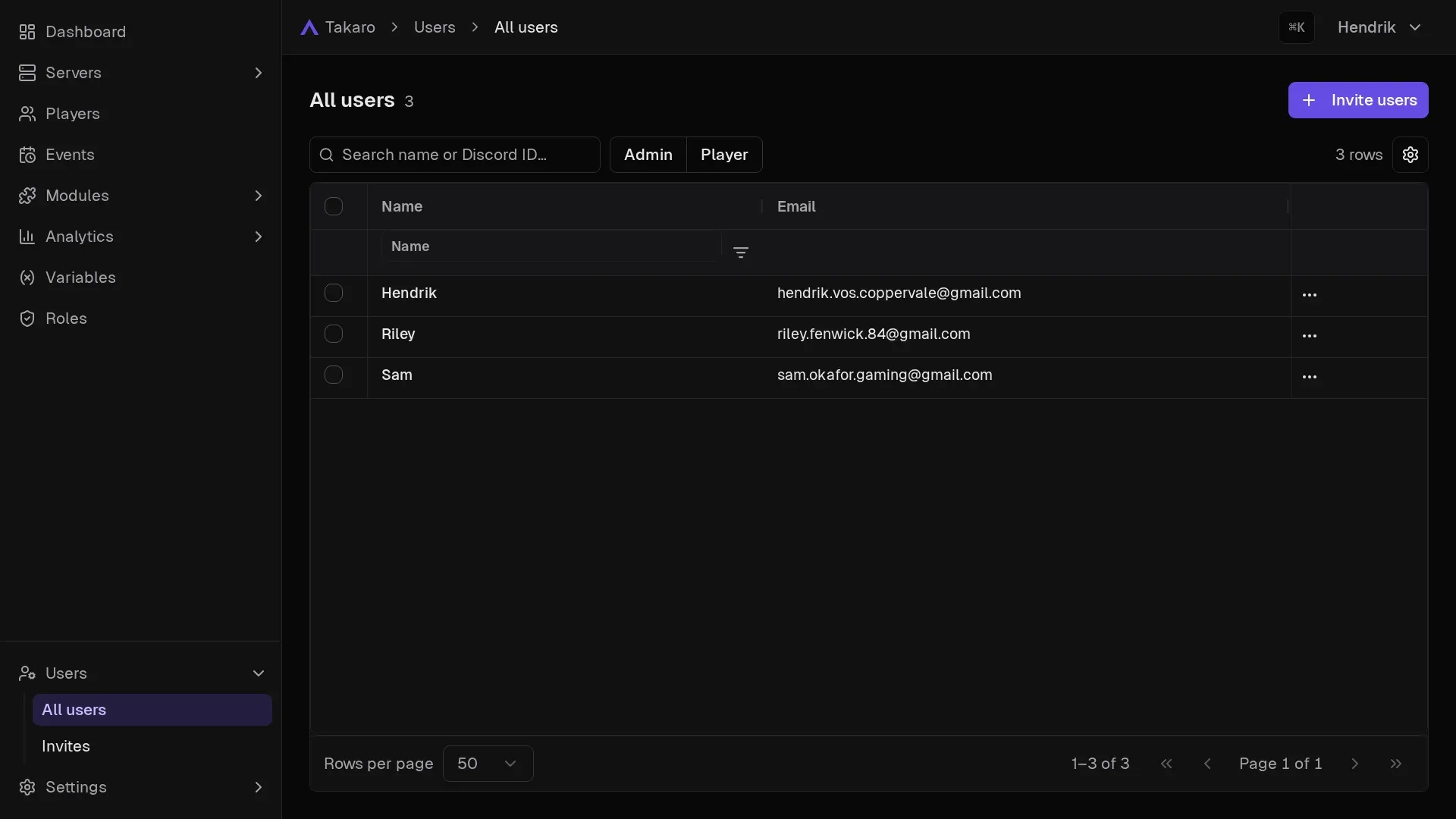
All users
Section titled “All users”Open Users → All users in the sidebar.
- Search by name or Discord ID.
- Quick filters: Admin, Player and Unlinked players (player logins that have no linked player yet).
- Columns: Name, Email, ID, Type, Linked player, Last seen and Created.
- Row menu: Assign role and Delete user.
- Bulk actions: tick several users, then Assign role or Delete.
Invite your team
Section titled “Invite your team”Invites are shareable links. You make a link, send it to the people you want, and they join by opening it.
Create an invite link
Section titled “Create an invite link”- Go to Users → All users and choose Invite users. Or go to Users → Invites and choose New invite link.
- Set Expires in (days). The default is 7. You can pick 1 to 365.
- Optional: set Max uses (leave blank for unlimited).
- Under Roles to grant on redemption, pick the roles new users get. For example Moderator. You can add up to 50.
- Choose Create link.
- Choose Copy link. The link is shown only once.
If you pick no roles, Takaro warns you. The new users then get only the default User role. Tick I understand, create it anyway to continue.
You need Manage Users and Manage Roles to create invite links.
What the invited person does
Section titled “What the invited person does”- They open the link.
- If they are not signed in, Takaro asks them to sign in or sign up first. They can use email, Discord or Steam.
- They see You have been invited to join with your community’s name, the roles they will get, and when the link expires.
- They choose Join
and land in your dashboard.
If they were already a member, they see Switch to this domain instead.
Manage invite links
Section titled “Manage invite links”Open Users → Invites. The Invite links page lists each link with:
- Status: Active, Revoked, Expired or Depleted (all uses taken).
- Expires.
- Used / Remaining.
- Roles it grants.
To stop a link, choose Revoke. People who already joined keep their access.
Give users roles
Section titled “Give users roles”User roles decide what your team can do in the dashboard. For example, give moderators Manage Players so they can ban, but not Manage Modules.
To give a role to a user:
- Go to Users → All users.
- Open the row menu and choose Assign role, or tick several users and choose Assign role in the bulk bar.
- Pick the role and confirm.
User roles always count everywhere. To see or remove them, open the role on the Roles page and use the Members tab. See Roles and permissions.
When a team member lacks a permission, the button for it is greyed out. Hovering shows which permission is missing.
Remove a user
Section titled “Remove a user”On All users, choose Delete user in the row menu. You need Manage Users.
Your own account
Section titled “Your own account”To change your login methods, open the user menu and choose Account settings. See Settings and account.