Settings and account
This page covers two kinds of settings:
- Community settings: how Takaro behaves for your whole community (domain) or one server. You find them under Settings in the sidebar.
- Your own settings: your login, API keys, language and theme. You find them in the user menu, under your name.
Community settings
Section titled “Community settings”Select Settings in the sidebar. It has three pages: General, Billing and Domain keys. You only see the pages your role allows.
General
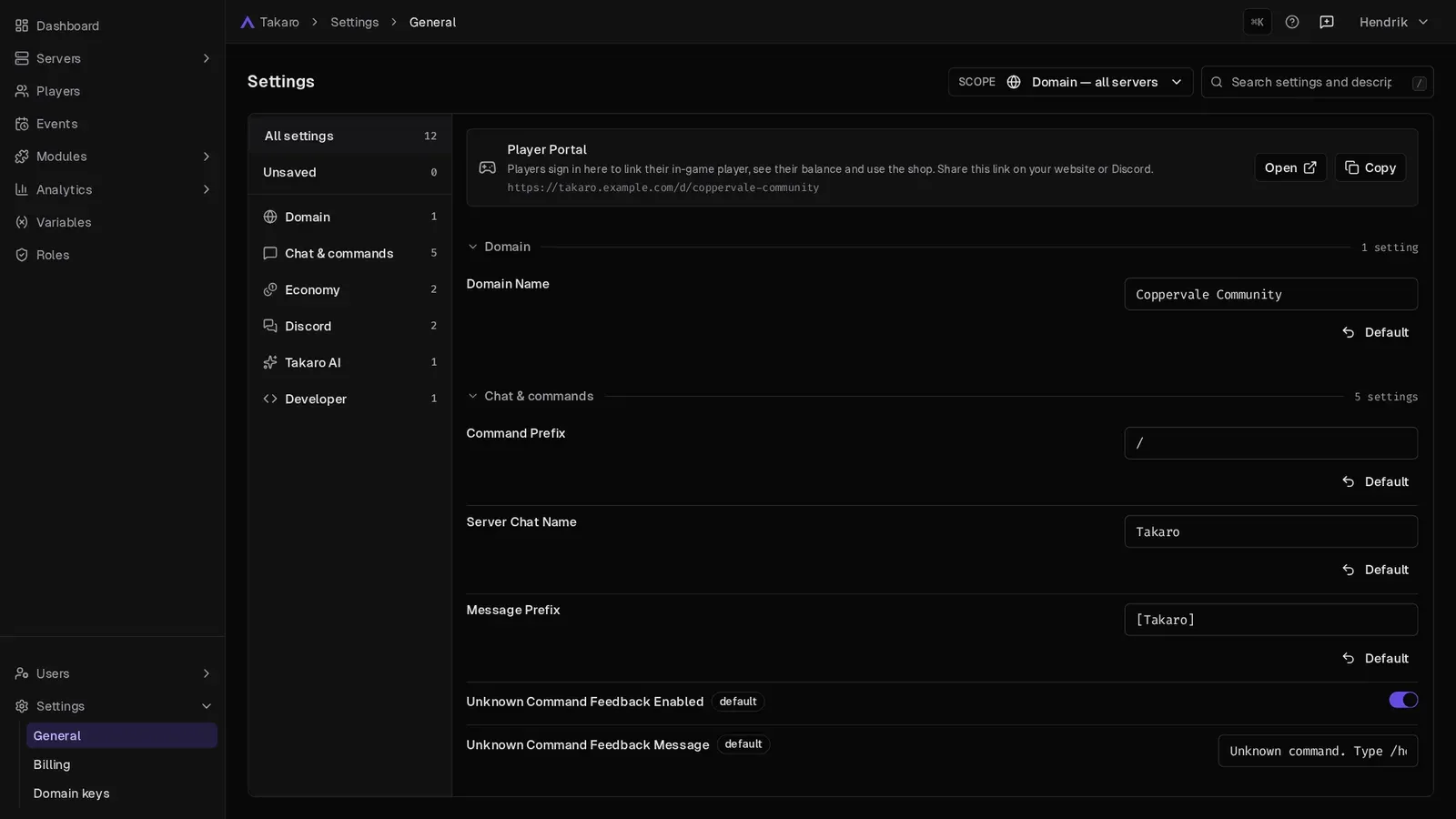
Section titled “General”Here you change how Takaro behaves in game and in the dashboard. Settings are grouped into categories:
| Category | What you set there |
|---|---|
| Domain | Your domain’s name. |
| Chat & commands | The command prefix players type (for example /), the name Takaro uses in game chat, a prefix for Takaro’s messages, and what players see when they type an unknown command. |
| Economy | Turn the economy on or off and name your currency. See Economy. |
| Discord | Connect your Discord account and Discord servers, and role sync. See Discord integration. |
| Takaro AI | Turn Takaro AI on or off for everyone in your domain. |
| Developer | Developer mode for custom modules, and how to connect an outside AI assistant. See Connect your AI assistant. |
To find a setting fast, type in the search box (Search settings and descriptions).
To change a setting:
- Change the value.
- Save. If you try to leave with unsaved changes, Takaro asks whether to discard them.
Settings for one server
Section titled “Settings for one server”By default you edit settings for the whole domain (Domain — all servers). To change a setting for one server only:
- Open the Scope menu at the top of the page.
- Pick the server. Each setting now follows the domain value and is locked.
- Select Override on the setting you want to change.
- Change the value and save.
To go back to the domain value, select Inherit on that setting.
For example, your PvP server can use a different currency name than your PvE server. Settings that only work for the whole domain, like Discord role sync, show Edit at domain level instead.
You can also get here from a server: select Settings under that server in the sidebar. See Servers.
Player Portal link
Section titled “Player Portal link”At the top of General you find your Player Portal link. It shows when the scope is the whole domain and the search box is empty. This is where players link their in-game player and use your shop. Select Copy to share it, or Open to see it yourself.
Billing
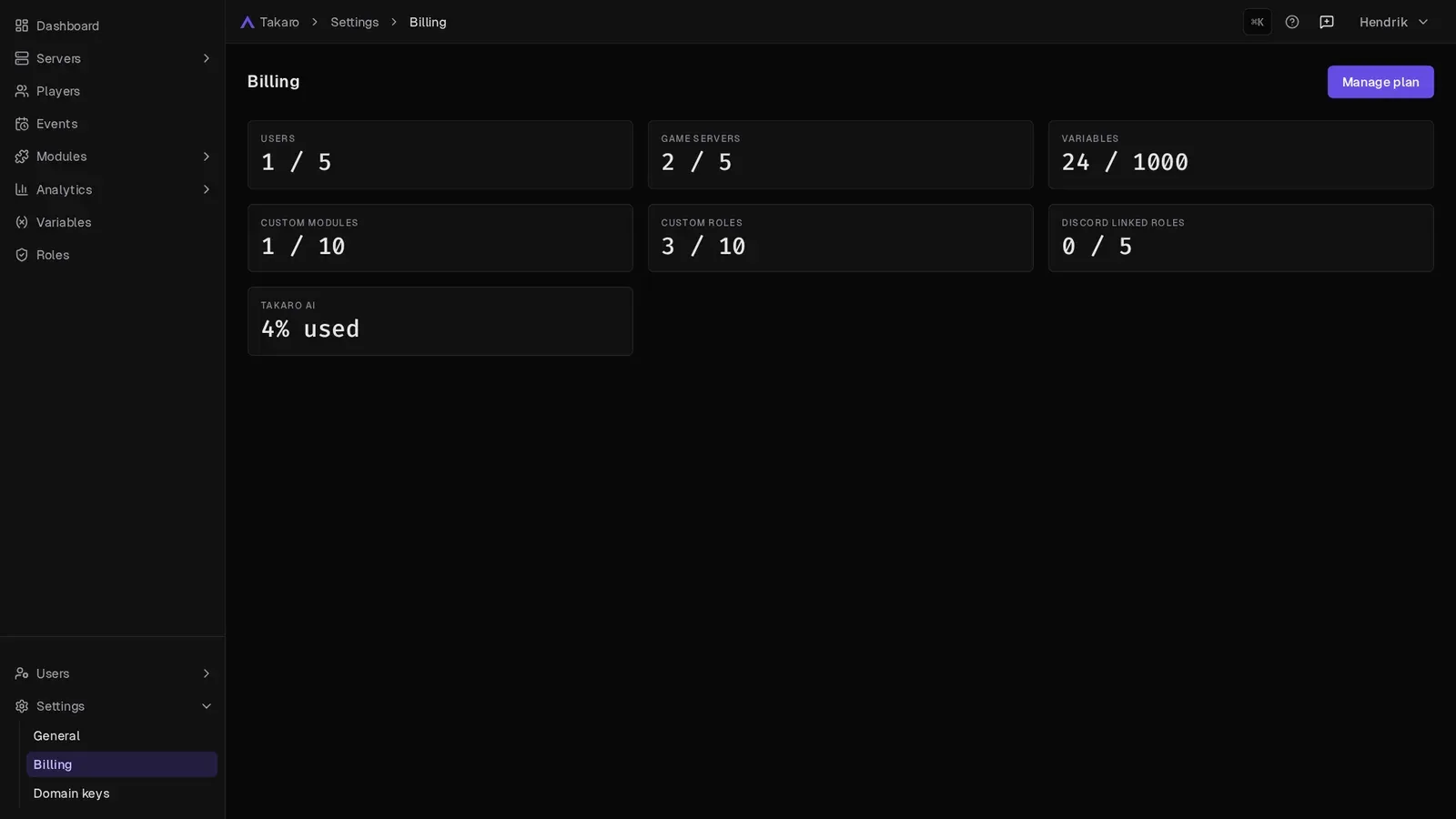
Section titled “Billing”Shows your plan and how much of it you use: game servers, users, custom modules, custom roles, variables, Discord linked roles and Takaro AI. Takaro AI usage shows as a percentage.
- Only users with full access (the Root permission) see Billing.
- To change your plan, select Manage plan.
- Plans and prices are on takaro.io/pricing.
If you got Takaro through a company that sells Takaro communities to its customers, that company handles your billing. In that case there’s no Billing page.
Domain keys
Section titled “Domain keys”A domain key lets a script or integration call the Takaro API as your community, not as you. Use one for things that should keep working when a team member leaves, like a bot or a deploy script.
To create one:
- Go to Settings → Domain keys and select New Domain Key.
- Give it a Name.
- Pick its Roles. The key can do what those roles allow. A key without roles can’t do anything until you give it one.
- Optional: narrow it further under Advanced: narrow permissions. A scope can only take permissions away, never add them.
- Optional: fill in Source IPs (see IP allowlists).
- Pick when it Expires: 30, 90 or 365 days (the default), never, or a custom date.
- Select Create key.
- Copy the key and store it somewhere safe. Takaro shows it only once.
You can later Edit, Rotate or Revoke a key from its row:
- Rotate gives the key a new secret. The old secret stops working right away. Name, scope and expiry stay the same.
- Revoke stops the key for good, on its very next request. It stays listed as revoked for 30 days.
API keys
Section titled “API keys”Under API keys in the user menu you manage your personal keys. A personal key acts as you, for your own scripts.
- With no scope, it can do everything you can do. If you lose a role, the key loses those permissions too.
- Create one with New API key. The steps are the same as for a domain key, without picking roles.
- As with domain keys, you copy the secret once, and can rotate or revoke the key later.
Which kind of key do I need?
Section titled “Which kind of key do I need?”| Kind | Acts as | Where to manage it |
|---|---|---|
| Personal | You, with your permissions | User menu → API keys |
| Domain | Your community, with the roles you give it | Settings → Domain keys |
| Distributor | A company that sells Takaro communities to its customers | Not in the community dashboard. As a server owner you don’t need one. |
IP allowlists
Section titled “IP allowlists”Personal and domain keys have a Source IPs field. Fill it in to only accept the key from your own machines.
- Enter one IP address or range per line, for example
203.0.113.5or10.0.0.0/8. - Leave it empty to allow any address.
- A request from any other address is rejected.
For how to call the API with a key, see API.
Your account
Section titled “Your account”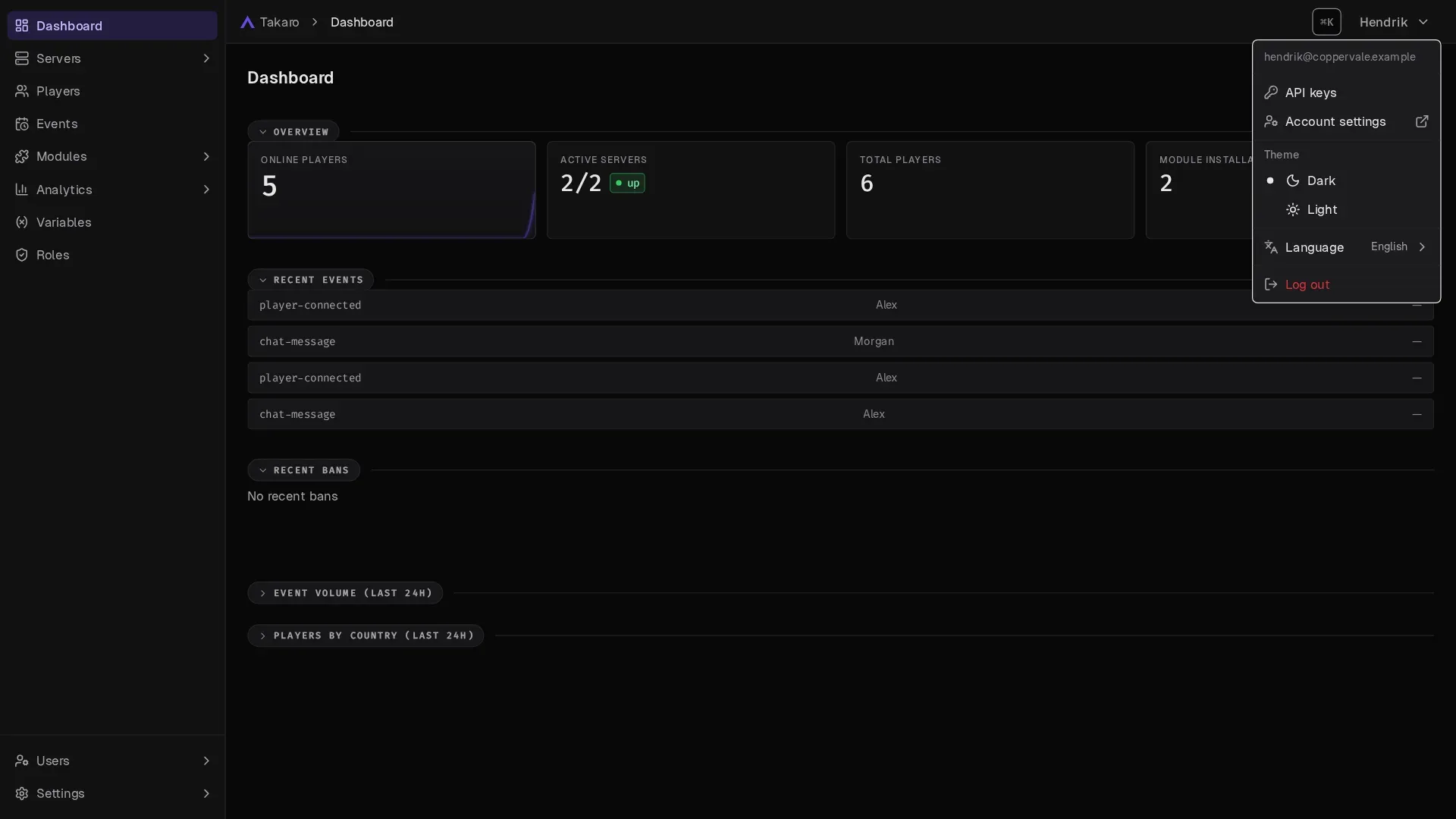
Link Discord or Steam to your login
Section titled “Link Discord or Steam to your login”You can log in with email, Discord or Steam. To add Discord or Steam to an account you already have:
- Log in the way you always do.
- Open the user menu and select Account settings. It opens in a new tab.
- Link Discord or Steam.
The Discord account card under Settings → General → Discord is a different thing. It connects Discord for Discord features, like your Discord servers and role sync.
Language
Section titled “Language”The dashboard comes in 15 languages: English, Dutch, French, German, Spanish, Russian, Portuguese (Brazil), Polish, Ukrainian, Simplified Chinese, Japanese, Italian, Turkish, Arabic and Hebrew. Arabic and Hebrew read right to left.
To change it, open the user menu, select Language and pick one. The login pages follow the same language.
In the same menu you can switch Theme between Dark and Light.
Switch community
Section titled “Switch community”If you belong to more than one community, open the user menu and pick the domain you want under Switch domain.
Search (Ctrl+K)
Section titled “Search (Ctrl+K)”Press Ctrl+K (⌘K on Mac) anywhere in the dashboard, or select the search button at the top.
- Type a name to find players and servers.
- Type a question to ask Takaro AI, for example “who was banned this week?”. See Takaro AI.
- Your Recent Threads (earlier Takaro AI conversations) are listed there too.